
To protect your sensitive data, additional verification is required to access certain areas of the panel.
This system is only activated when necessary and does not affect normal use of the panel.
When is verification required?
Verification is only triggered when you access areas containing sensitive data, such as:
- Personal data
- Invoices and documents
- Payment methods
- Domain configurations (DNS, auth code)
- Email management
👉 Not required for standard sections of the Control Panel

How verification works
The process is very simple:
- Log in to the dashboard using your login details
- You are entering a secure area
- The system requires confirmation
- Enter the code you have received
- You will be granted access to the area
✅ The confirmation is valid for the entire session (10 minutes), so you don’t need to re-enter the code each time you perform an action.
Method 1: Two-factor authentication (2FA)
If you have already enabled two-factor authentication:
- Go to the secure area
- Enter the code generated by your app (e.g. Google Authenticator)
- Log in immediately.
No further settings are required.
Method 2: One-time password (OTP)
If you haven’t enabled two-factor authentication yet, you will receive an OTP (one-time password).

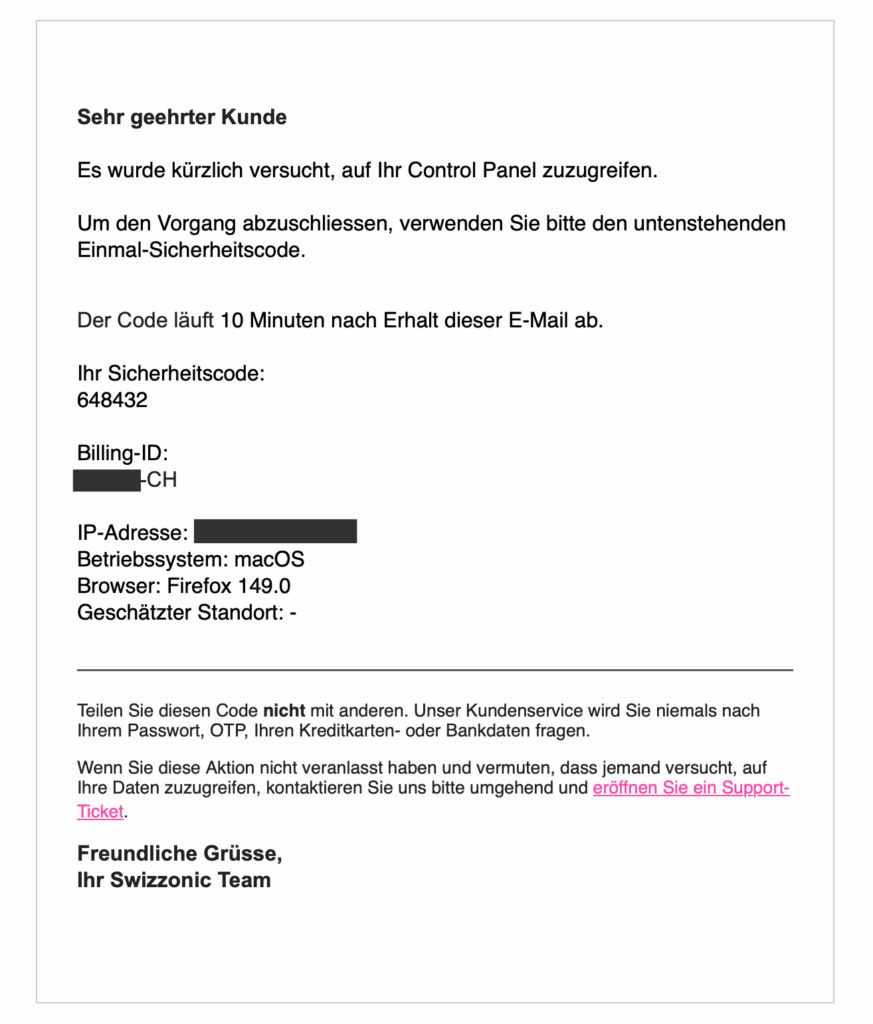
OTP via email


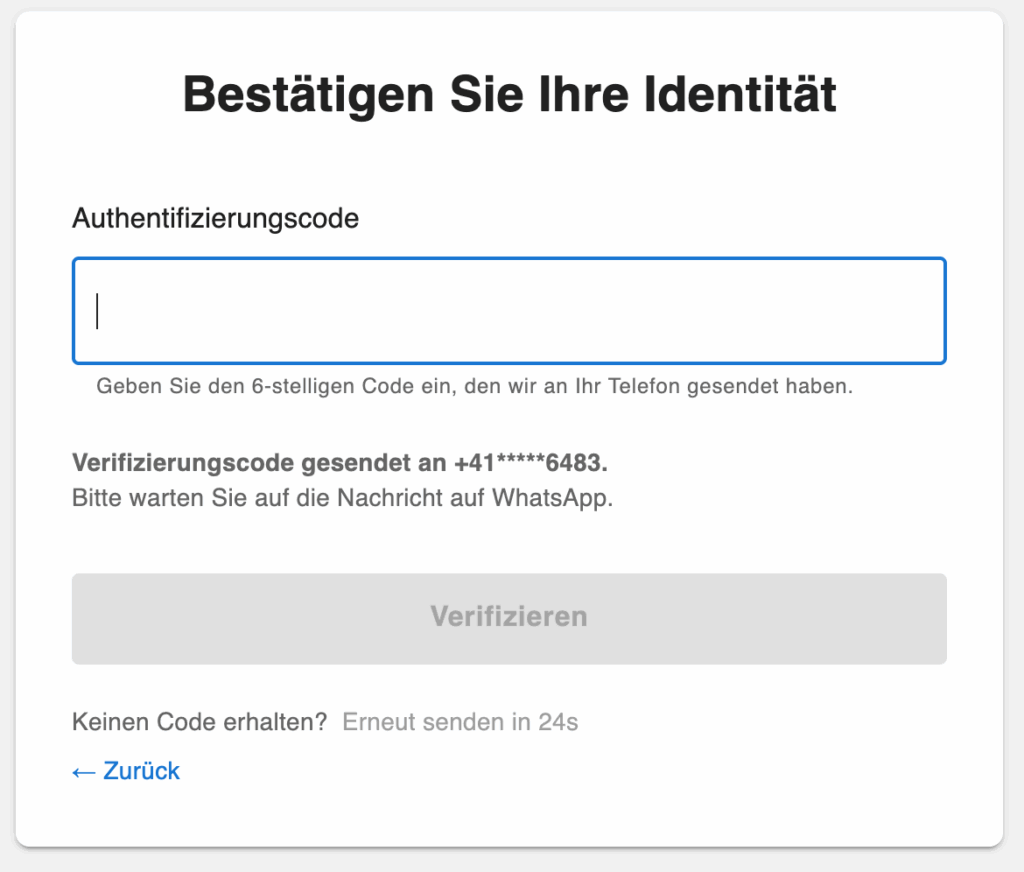
OTP via WhatsApp


Frequently Asked Questions
Following the review
Once the code has been entered correctly:
- you will be granted access to the restricted area
- you can carry out further transactions without further verification
- the session will remain active for a limited period.
Du erhältst den Code nicht?
This is the most common problem. Check now:
- whether the email address linked to the account is correct.
- whether the phone number is up to date.
- the spam or junk folder.
- any active email filters.
👉 If your details are out of date, please update them via the dashboard or contact support.
Why this review is necessary
The purpose of this measure is:
- to protect your personal and financial details,
- to prevent unauthorised access
- and to prevent unauthorised changes to your account.
Shared access: What’s changing?
It is no longer recommended to share usernames and passwords.
👉 If you need to grant access to an employee or technician, use a technical administrator:
- Every user has personal access
- All processes are traceable
- Confidential data remains protected.
Do I have to enter the code every time?
No. Once you have confirmed access, you can work without restriction throughout the entire session.
Can I choose between 2FA and OTP?
Yes. You can enable two-factor authentication or use one-time passwords sent via email or WhatsApp.
Can I disable verification?
No. Access to sensitive areas is essential.
What if I don’t have access to email or a phone?
Please contact Support via a ticket to update your details securely.
Advice
How to avoid access issues:
👉 Please make sure your email address and phone number are always up to date in the user area.
You can now choose your preferred method for receiving the OTP, or alternatively enable two-factor authentication.
If you choose email, you will receive an email containing the OTP code at the email address linked to your account.
If you choose WhatsApp, we will send the code to the mobile number linked to your account.